 Free Auto Refresh
Choose what to watch
Open the status page after you sign in. Note the exact word it shows now, such as "Processing", "In review" or "Received". When the status changes, that word will disappear. That is what you watch for.
Set up the alert
- Open the status page and the Free Auto Refresh popup.
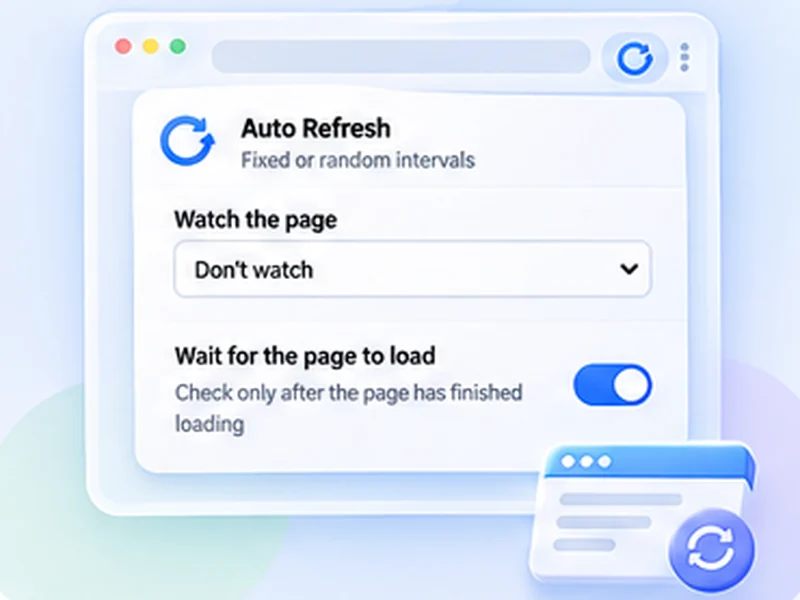
- Under Advanced settings, Watch the page, choose Stop when text disappears and type the current status word.
- Choose an interval of 15 to 30 minutes. Statuses do not change by the second.
- Press Start.
A notification and a flashing tab title tell you when it changes.
Mind the sign-in
Many status pages log you out after a few minutes of inactivity, and a reload then lands on the sign-in page. If that happens, the watch will report a change. Check the tab when you are alerted, and sign in again. Turn on a time limit so the tab does not run for days.
Keep your details private
Free Auto Refresh stores its settings on your device and makes no network requests of its own. It does not read or send the contents of your status page anywhere. See our privacy page.
What it does not do
It does not contact the office, speed up a decision or log in for you. It only saves you the repeated checking.