 Free Auto Refresh
Check the built-in refresh first
Tools such as Grafana, Looker Studio and Power BI have their own refresh settings, and they use less data than reloading the whole page. If yours has one, use it. Use a browser timer when the tool has no refresh option, when it is slower than you need, or when the page is a simple internal web page.
Setting it up
- Open the dashboard in its own browser window.
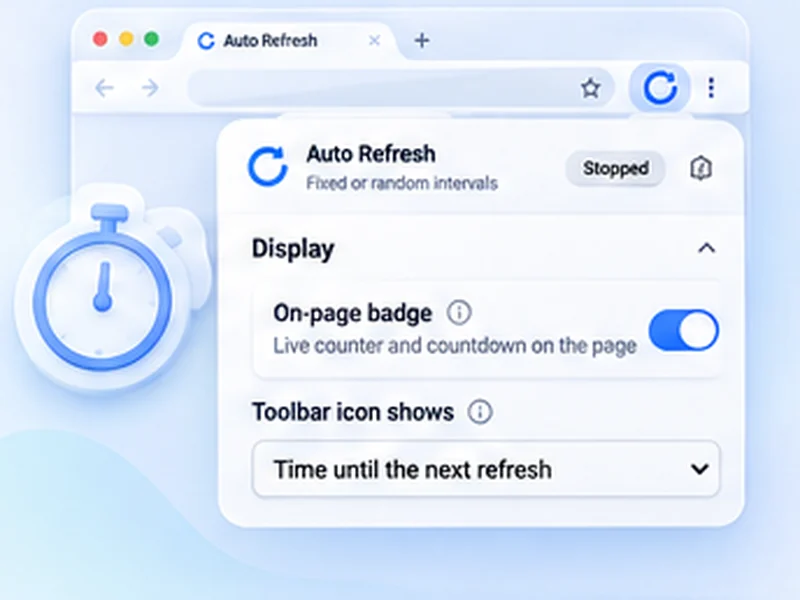
- Open Free Auto Refresh and set the time, for example 60 seconds in Min and Max.
- Turn on Keep scroll position if the board is long.
- Press Start and put the window in full screen with F11.
Choose a sensible time
- A queue people act on: 30 to 60 seconds.
- A sales or finance board: 5 to 15 minutes.
- A server status board: 30 to 60 seconds.
Remember that each reload is a request to the dashboard's server, and some reports are costly to run. Do not go faster than people read it.
Keep it running
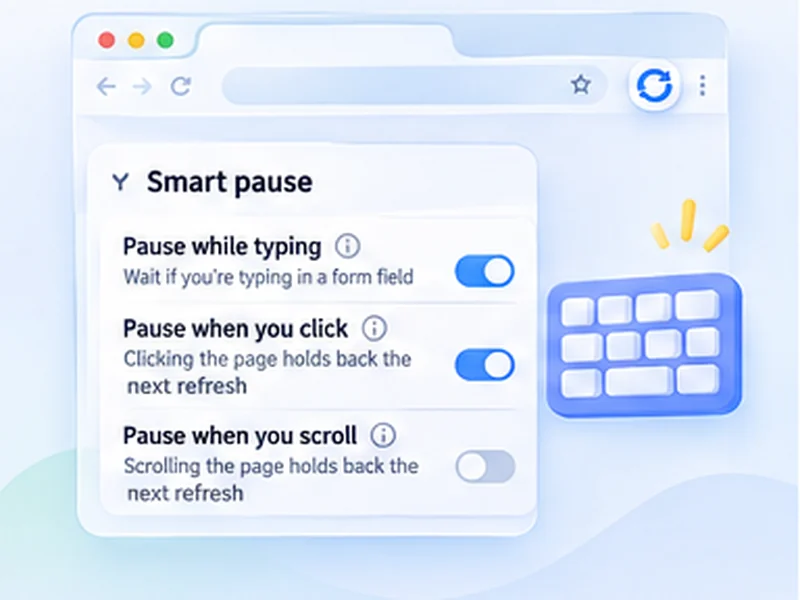
Turn on Keep the tab awake so the browser does not put it to sleep. With saved profiles you can keep one set of settings per screen. The option to remember a page lets a page you started begin refreshing again when it is reopened, including after a browser restart.
Know the limits
A reload can sign the page out if the tool's session expires, and the screen will show a sign-in page until someone signs in. For an unattended display, use an account and a session length meant for it, within your company's rules.