 Free Auto Refresh
The quick setup
- Open the page you want to reload and click the Free Auto Refresh icon.
- Type the time in Min and Max. Use the same number in both for a fixed timer, for example 10 and 10 for every 10 seconds.
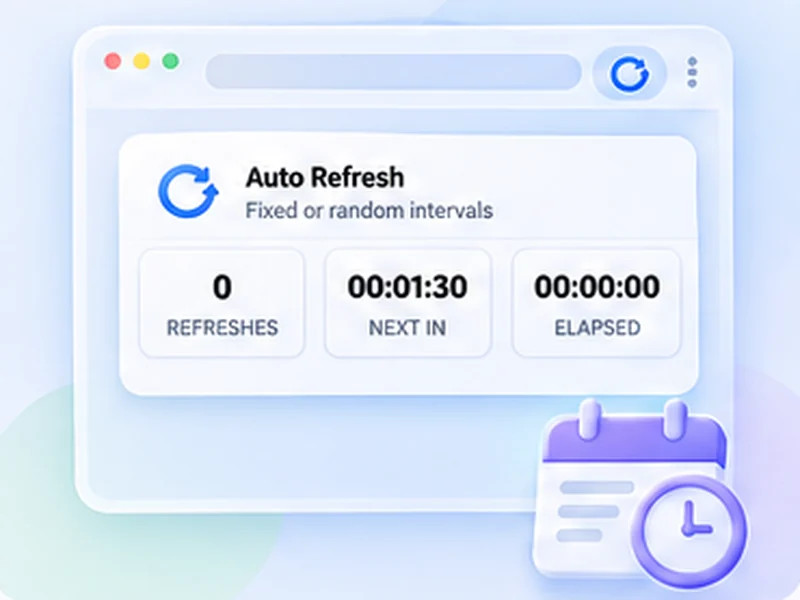
- Press Start. A small counter on the page shows the countdown.
Press Alt + Shift + R to start or stop without opening the popup.
Which number should you pick?
- 5 seconds: a live scoreboard or a status page you are watching right now.
- 10 to 30 seconds: a dashboard, a page you are editing, or a results page.
- 60 seconds: most things you want to be told about, such as a booking page or a product page.
- 5 minutes or more: slow pages and anything that does not change often.
Faster is not better. Many sites slow you down if you reload too often, so start longer and shorten only if you need to. Our guide to the best refresh interval has more.
Use a random range instead of a fixed time
Put different numbers in Min and Max, for example 20 and 40. The extension then waits a new random time between them on every reload. It spreads the requests out and is gentler on the site. See random interval refresh.
Make it stop by itself
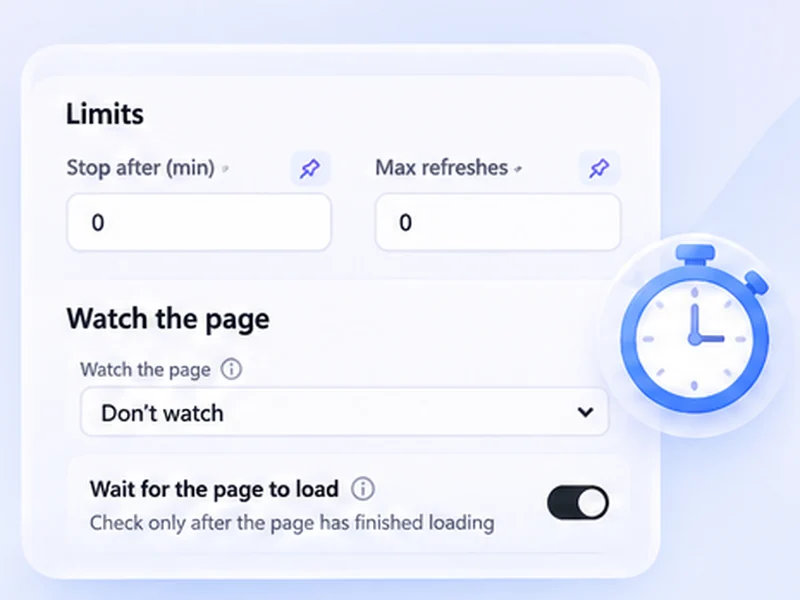
Add a limit so the timer ends after a number of minutes or a number of refreshes. That way a forgotten tab does not keep reloading all night.
Keep the page from jumping around
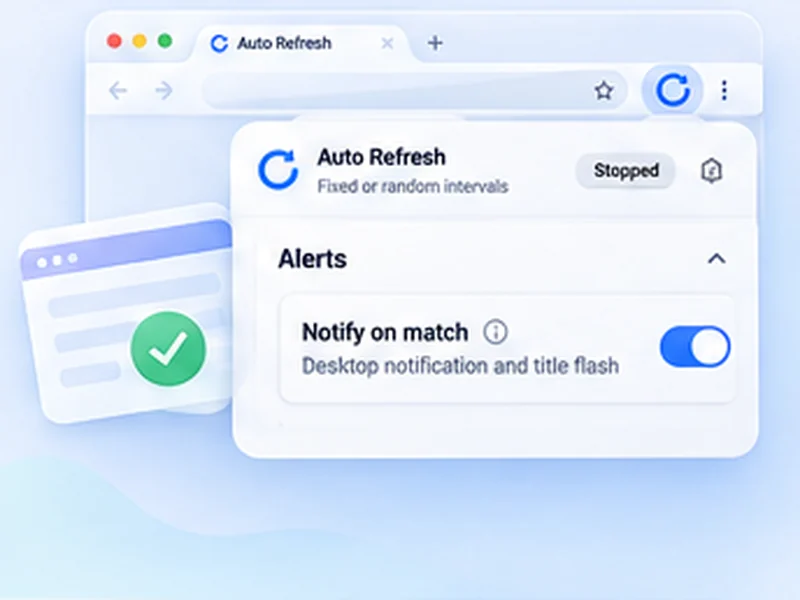
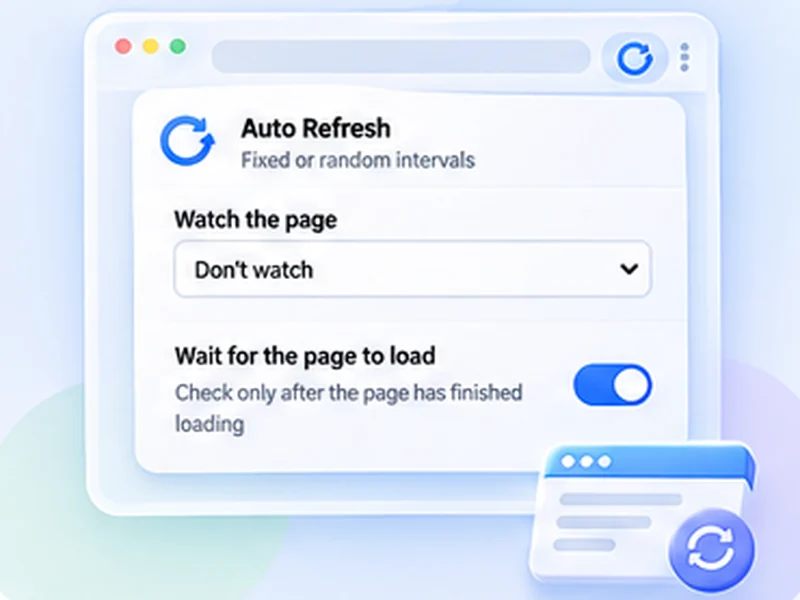
On a long page, turn on Keep scroll position so each reload returns to where you were. If you only want to be told when something changes, use page watching instead of staring at the reloads.