 Free Auto Refresh
What a rate limit is
A site counts how many requests come from you in a short time. Go over its limit and it may show an error (often 429 Too many requests), slow down, or temporarily block you. Limits differ per site.
1. Use a longer interval
The single biggest fix. Moving from 5 seconds to 30 usually removes the problem and rarely makes you miss a change. See our guide to the best refresh interval.
2. Use a random range
A min and max such as 30 to 60 seconds spreads requests out, instead of hitting the site on an even beat.
3. Set a limit
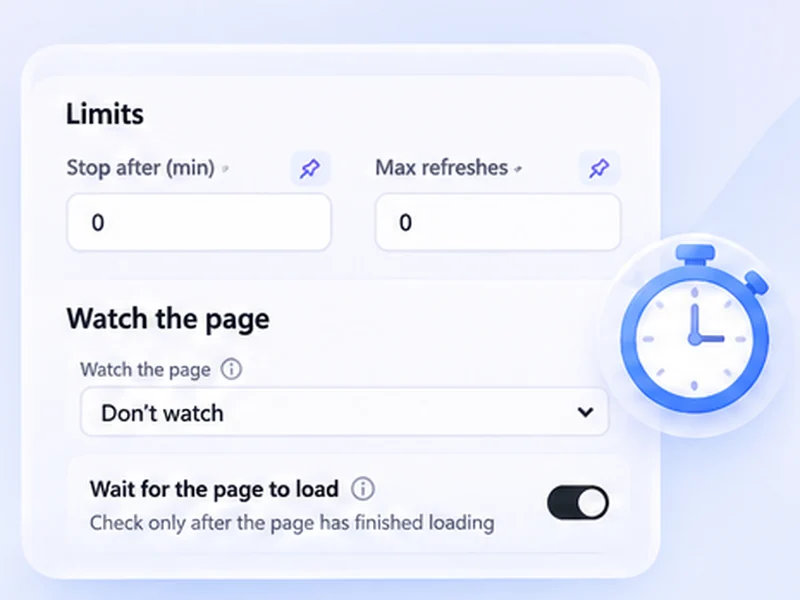
With refresh limits, stop after a time or a count. A refresh that ends after 30 minutes is far less likely to trouble anyone than one left running overnight.
4. Pause while you work
Smart pause holds the timer while you type, so you are not reloading and typing at once.
5. Respect the site's terms
Some sites forbid automated refreshing altogether. If a site's rules say no, do not refresh it. This is advice about being considerate, not a way around protections.